How to connect ChatGPT to your WhatsApp and Telegram chats in five minutes: a step-by-step guide with no developer and no technical setup.
Many people already ask ChatGPT to help them reply to a customer. But to do that, you have to copy the conversation into ChatGPT and then paste the finished reply back into the chat.
You can skip that step. Once ChatGPT is connected to your WSENDER dashboard, it can see the chats in your WhatsApp and Telegram accounts and Telegram bots on its own. Then you just ask in plain words: "Who is waiting for a reply?" or "What did customers say about yesterday's campaign?", and it answers based on your real conversations.
Setup takes about five minutes. You don't need a developer, and there's nothing to install: you paste one address into ChatGPT and sign in to WSENDER as usual.
What changes once you connect ChatGPT
Once connected, ChatGPT sees your accounts, chats and campaigns on its own, and you no longer need to copy conversations. It can:
- show which customers are waiting for a reply;
- sum up what customers said in reply to a campaign;
- draft a reply to a customer or a new campaign for you to check before sending.
For example, in the morning you ask: "Who messaged overnight?" ChatGPT replies that three people did: Priya is asking the price of two chairs and whether they can arrive by Friday, Rahul wants to reschedule his appointment, and Ananya is thanking you for the discount. It also offers draft replies straight away. All you have to do is check them and send.
What MCP is, in plain words
You'll see the word MCP right in the ChatGPT menu. It's a standard way for ChatGPT and other AI assistants to connect to services. Think of a USB port: you plug different devices into it, and each one tells the computer what it can do. In the same way, WSENDER tells ChatGPT which actions are available: read chats, prepare campaigns, send replies.
You don't need to understand how it works inside. All you need is the WSENDER connection address: https://mcp.wsender.io/.
What you need to connect ChatGPT
- A computer. You can set up the connection in ChatGPT in a browser or in the desktop app. You can't do it in the phone app.
- The Plugins section in the ChatGPT menu. A plugin is an add-on that gives ChatGPT new abilities, such as access to your WSENDER chats. Not every ChatGPT subscription has this section. If you use ChatGPT through your company, its administrator may have turned it off.
- A WSENDER dashboard with a WhatsApp account, Telegram account or Telegram bot connected. Connecting ChatGPT is free and works on any WSENDER plan. For ChatGPT to read your conversations, you need the Light plan or higher.
For teams and companies on ChatGPT Business or Enterprise. An administrator can add WSENDER for employees and set up in one place who has access and which actions are allowed. Each employee still signs in to WSENDER with their own account when connecting and chooses a project: ChatGPT only gets access to the projects that this employee can access.
How to connect ChatGPT to WSENDER in five steps
Button names below are from the English version of ChatGPT. If your ChatGPT is in another language, the buttons are in the same places.
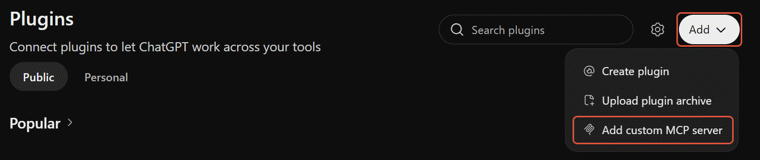
- Open ChatGPT in a browser or in the desktop app and go to Plugins. Click Add in the top-right corner and choose Add custom MCP server.
- A connection window opens. In Name, type WSENDER. Under Connection, keep Server URL selected and paste
https://mcp.wsender.io/. Authentication should be set to OAuth: this means you'll sign in with your WSENDER account, so there are no keys or passwords to enter. Leave the icon, description and advanced OAuth settings as they are.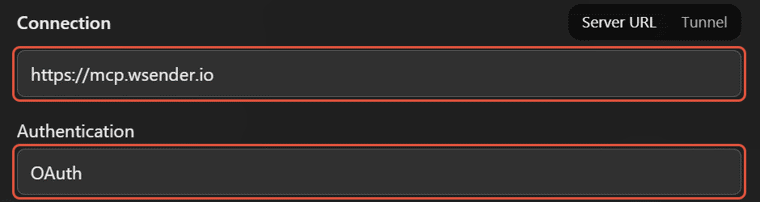
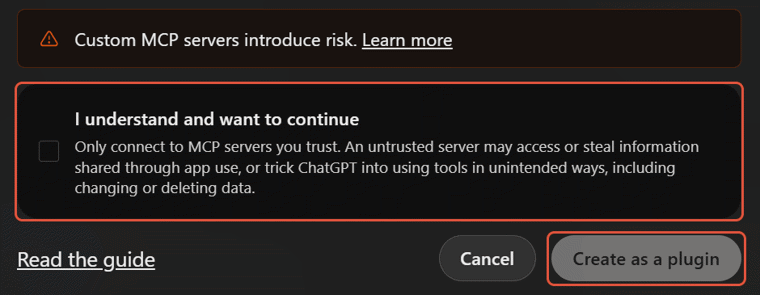
- At the bottom of the window, ChatGPT shows a risk warning. It shows this for any service you connect yourself. Tick I understand and want to continue and click Create as a plugin.
- The WSENDER sign-in page opens. Sign in the same way you do for your dashboard: with Yandex, Google or email. Choose the project you're giving access to and click Allow. In WSENDER, a project is your company's workspace, with its own accounts, contacts and campaigns.
- The new plugin appears in Plugins on the Personal tab, under Created by you. Check that WSENDER is in the Installed list on the left. If it isn't, open WSENDER under Created by you and install the plugin. Then open a new chat, type the
@symbol and select WSENDER.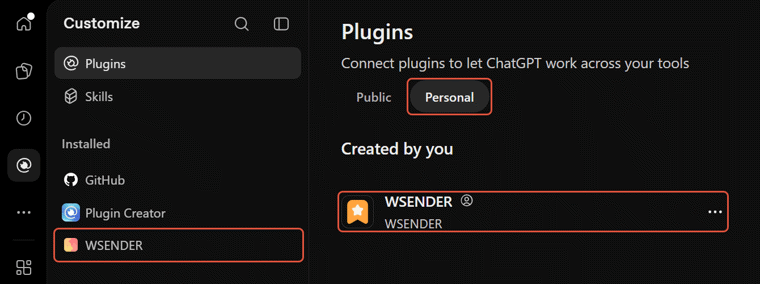
Done: ChatGPT can now see your dashboard. The @ symbol tells ChatGPT to work with WSENDER in this conversation.
If another guide tells you to turn on Developer Mode, you can skip it for WSENDER.
If you have several projects in WSENDER, for example your own business and a client's, you won't have to connect ChatGPT again. You add the others in your dashboard: "My applications" → "add project" in the ChatGPT row.
First requests: check that ChatGPT sees your WhatsApp and Telegram chats
Use plain words, the way you'd message a colleague. Start with questions: they don't change anything and don't send anything to customers.
- "Show my connected WSENDER accounts and bots."
- "Which customers are waiting for a reply?" This is the same list as the "Awaiting reply" tab in Dialogs, which gathers chats from all your accounts and bots in one place.
- "Show my last campaign: how many messages got delivered and who replied."
- "Go through the replies to yesterday's campaign and draft answers. Don't send anything."
Once you can see everything is there, give it a real task: "Prepare a campaign for regular customers about [occasion] and leave it as a draft." WSENDER checks a campaign from ChatGPT the same way as one created in the dashboard and sends it at the same safe pace.
Will ChatGPT message a customer on its own?
If you want only yourself to send messages, the reliable way is to set this up in WSENDER. Go to "My applications" → "Permissions" in the ChatGPT row in your dashboard and remove its permission to launch campaigns and send messages. Without this permission, it can't send anything, even if you ask it to, and will only prepare drafts. The change takes effect within a minute. If ChatGPT later asks you to sign in again and you click "Allow", the removed permission comes back.
If you keep the permission to send, there are two more safeguards, but they are not a guarantee:
- ChatGPT usually asks for confirmation before any action that changes something: sending a message, launching a campaign. When it asks, and whether it can remember your answer, depends on ChatGPT's settings, not on WSENDER.
- WSENDER keeps preparing and launching separate. ChatGPT builds a campaign draft and stops, and you can open the draft in your dashboard and check it. Before replying to a customer, WSENDER asks ChatGPT to show you the text and who it will go to.
In short: ChatGPT usually asks before sending, but only removing the permission guarantees it won't send anything.
Can ChatGPT notice new messages by itself?
Usually ChatGPT looks at your chats when you ask. But in two places it can get a notification about a new message and start working on it right away:
- A Work chat. Work is the ChatGPT mode for multi-step tasks, when you want a finished result rather than a quick answer. On the ChatGPT website, any Work chat will do. In the desktop app, choose Work and the Cloud option: the task then runs on ChatGPT's servers, not on your computer.
- Dots. A dot is an always-on assistant in ChatGPT: you give it a long-running task, and it keeps working between conversations.
To turn this on, give ChatGPT the whole task, including what to do with each new message: "Watch for new messages to my bot [name], briefly sum up each question and draft a reply. Don't send anything." Then send the bot a test message and see whether ChatGPT reacts. To make sure no replies go out without you, remove its permission to send, as described above.
Notifications work on the Light plan and higher. ChatGPT learns about messages to your bots immediately. For a messenger account, turn on the "History sync" option so that ChatGPT notices messages from new customers. It's a paid option that you turn on from the account's page in your dashboard.
Frequently asked questions about connecting ChatGPT to WSENDER
-
How much does it cost to connect ChatGPT?
On the WSENDER side, connecting is free on any plan. Messages that ChatGPT sends at your request are charged the same way as messages sent from the dashboard. Your ChatGPT subscription is paid separately, in ChatGPT itself.
-
I don't see a Plugins section or an Add button in ChatGPT. What should I do?
Connecting your own services isn't available in every ChatGPT subscription, and if your company provides ChatGPT, its administrator can turn it off. There's nothing to set up in WSENDER: check your ChatGPT subscription or ask your administrator.
The same address works for other assistants too, such as Claude. We explain how to connect them in our article about sending campaigns through an AI assistant.
-
I opened the connection address in a browser, but there's no dashboard. Is something wrong?
No. The address
https://mcp.wsender.io/is meant for ChatGPT. In a browser, it only shows a page confirming that the address is correct. Your dashboard is at its usual address. -
Why can't ChatGPT see my conversations?
ChatGPT reads WhatsApp and Telegram conversations on the Light plan and higher. On these plans, it sees bot chats right away. For a messenger account without the "History sync" option, ChatGPT only sees chats you've messaged through WSENDER in the past week, and new messages in them show up with a delay of up to 4 hours. With the option on, ChatGPT sees all the account's chats except groups and channels.
If ChatGPT says the project balance is negative, pay off the debt with the "Pay off debt" button on the project page. About half a minute after you pay, ChatGPT can work again.
-
Why is ChatGPT working in the wrong project?
ChatGPT works in the project you chose when signing in, unless your request names another one. When you reconnect, check which project is selected before clicking "Allow". If you have several projects, just name the one you need in your request.
-
How do I disconnect ChatGPT from my dashboard?
In your dashboard, open "My applications" and click "Disconnect" in the ChatGPT row. ChatGPT loses access to your chats within a minute.
What's next
Open ChatGPT on your computer, connect WSENDER with the five steps above and ask your first question: "Which customers are waiting for a reply?" The answer will show you right away how much of your messaging ChatGPT can take on.
If you don't have a WSENDER account yet, start with the free plan: there you can connect ChatGPT, show it your accounts and build your first campaign draft. For ChatGPT to work through your conversations, you'll need the Light plan. Guides for other assistants are on the AI assistant connection page.
