Bulk messaging API for WhatsApp and Telegram: connect an account, create a campaign and get delivery statuses straight from your CRM or website.
Messages to clients are almost never something to send "when you get around to it". They matter at the moment of an event: someone paid for an order, booked an appointment, missed it, or hasn't been back for a month. The event has already happened in your system, and logging in to your dashboard afterwards to put a campaign together by hand makes little sense.
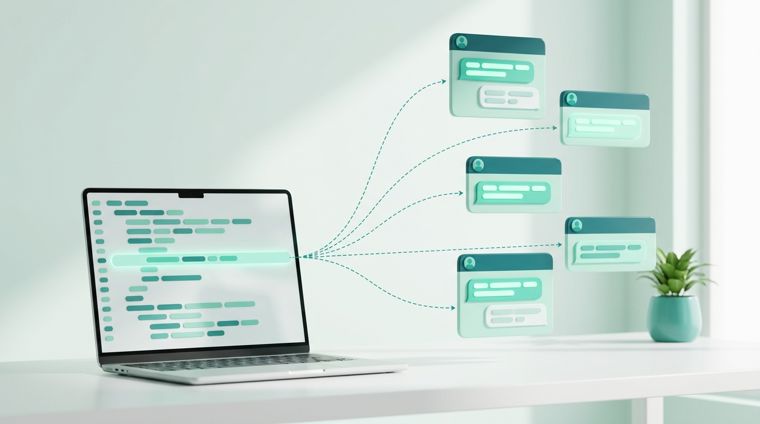
That's what the public API is for. The whole campaign runs through it: building the audience, checking the text, a safe sending pace, a status for every recipient and their reply. You don't have to build a queue, pauses between messages, retries or protection against your number getting blocked. The service takes care of that, and your system only has to make a single call.
One set of methods covers all of it: WhatsApp and Telegram accounts and Telegram bots. Adding another messenger doesn't take a new integration: you change one value in the same request.
What the WhatsApp and Telegram bulk messaging API can do
Everything you do by hand in the dashboard is available over HTTP:
- Connecting messengers and bots. One request: a messenger account connects by QR code or phone number, and a bot by token. The service reports the result of the connection on its own. If the account is protected with a two-step verification password, you pass that through the API too.
- Audience. Create a segment and upload phone numbers, up to 100 numbers per request; a longer list goes in several requests. Numbers the project already knows aren't duplicated.
- Campaigns. Create one, add text or media (an image, video, audio or document, up to ten messages per campaign) and choose the recipients: a contact segment, the account's phone book or existing chats. Then comes the text check, the launch, pausing and canceling.
- Editing a draft. Until the campaign is launched, the API lets you change the text and files of its messages, delete messages you don't need and rename the campaign itself. Editing the text resets a passed review: the campaign goes through moderation again before it can start.
- Results for every recipient. Sent, delivered, read, replied, number not on the messenger.
- Recipient replies. Not just the fact that someone replied, but the text of the reply: what exactly the person wrote back to your campaign.
- Sending a single message. For transactional cases there's a separate method: your own text and attachment in each request, with no need to build a campaign around a single number.
- The whole conversation. The dialog history with a person: incoming and outgoing messages in one feed. The service reports a new incoming message with an event, and you can reply with the same single-message sending method, even quoting a specific message in your reply. Bots receive incoming messages right away, while messenger accounts get them through sync, with some delay. Both need a plan with reply analytics; more on that below.
- Webhooks. An account connected or disconnected, the messenger restricted an account, a campaign started, paused or finished, a recipient replied, an incoming message arrived. No need to poll the API in a loop.
One important point about the sender: messages go out from your own accounts, which you connect yourself. The service doesn't hand out numbers of its own, and that works in your favor: the number and its reputation stay yours, and client replies reach you in the regular messenger app.
How to get an API key
- Sign in to your dashboard and open the API section.
- Click "Create key", give it a name (later it tells you which integration the key is for) and, if you like, an expiry date.
- Copy the token. It's shown only once: the service stores only its hash and can't recover the value. If you lose it, create a new key and delete the old one.
The API section is open only to the project owner: only they can create keys and see the key list. So if a developer or contractor builds the integration, the owner issues the key and hands over the token instead of giving them access to the dashboard.
A key is issued to the project, not to a team member. Keep it like a password. You can create several keys, for example one per integration, so you can revoke them independently.
A key has permissions, and you tick them when you create it: read project data, prepare campaigns and audiences, launch campaigns and send messages, manage accounts and bots, configure the webhook. By default a new key can read and prepare; everything else you grant deliberately. Permissions can be changed later without changing the key itself, so an integration that already uses it doesn't need to be stopped.
The token goes in the header of every request. To check that everything works, request the list of connected accounts:
curl https://api.wsender.io/v1/channel \
  -H "Authorization: key YOUR_TOKEN"
All methods are described in the API documentation, and you can run a request with your own key right from the browser without writing a line of code. Next to it is the machine-readable spec, the OpenAPI file: tools like Swagger Codegen or NSwag use it to generate a client in your language, so you don't have to describe requests and models by hand.
A campaign in seven requests
The minimal flow looks like this: build a segment → create a campaign → add text → set the recipients → submit for review → launch.
PUT /v1/segmentcreates a segment.PUT /v1/segment/{segmentId}/contactuploads the numbers.PUT /v1/mailingcreates a campaign.PUT /v1/mailing/{mailingId}/message/textadds the message text.PUT /v1/mailing/{mailingId}/recipient/sourcesets the segment as the recipient source.POST /v1/mailing/{mailingId}/moderatesubmits the text for review.POST /v1/mailing/{mailingId}/startstarts sending from the chosen account.
The requests are the same everywhere: a WhatsApp campaign is created exactly like a Telegram campaign or a bot campaign. The only difference is what you've connected. After that there's nothing to poll: statuses arrive by webhook.
Retrying a request won't create a second campaign
A common situation with any integration: the request went out, the response never came back. The network dropped out, a timeout fired, your service restarted at the wrong moment. It's unclear what to do next: retry, and you risk creating a second campaign or starting the send twice; don't retry, and it may turn out nothing was sent at all.
That's why every request that changes something accepts a retry key. You make up a string (usually a UUID) and pass it in a header:
Idempotency-Key: 3f0c1b7e-8a2e-4a51-9d2b-6a1e0f2c4d88
There's one rule: a new operation gets a new key, and a retry of the same operation gets the same key. The service handles the rest. The first request is executed and its response is stored for a day. A retry with the same key executes nothing and returns the same response as the first time. If the first request is still in progress, the retry gets a 409 code: wait and try again.
If you send a different request with the same key, you get a 422 code. This protects against accidental reuse: you won't get the result of a different request.
The practical takeaway for your integration: retry whatever has no result yet, meaning dropped connections, server errors and a 429 response (too many requests). Those responses aren't stored, and a retry really will perform the operation. A rejection based on the content of the request, for example "the text is missing a required field", is already a result, and a retry will return it again.
Where recipients come from
The fifth step deserves a closer look: the source affects both the outcome and the risk to the account. There are three sources to choose from.
- Contact segment. You upload the numbers. A campaign tied to a segment keeps sending to contacts you add later. For an integration this is the main source, and it gets its own section below.
- Account contacts. The phone book of the connected number. By default messages go only to people you've already chatted with: that audience replies better and hardly ever complains. You can lift this restriction, but it's better not to.
- Account chats. Existing dialogs. Here too you can keep only the people you've talked to, and separately exclude dialogs with bots so you don't message service chats.
One detail to account for when designing the integration: on the first launch the source is locked in together with the messenger and doesn't change after that. A different source needs a new campaign.
Telegram bots: the same API
We don't have a separate "bot API", and that's deliberate: an integration written for campaigns from an account works with a bot without any rework. The same connection methods, the same statuses, the same webhooks, the same path from draft to per-recipient report.
There are exactly two differences, and both are obvious right away.
Connecting by token. You get the token on the platform side: in Telegram, @BotFather issues it. After that it's the same request as for an account, only with the token instead of the sign-in method. If the token is reissued, the bot isn't lost: a separate token update request replaces it on the already connected bot, and subscribers, campaigns and history stay in place (in the dashboard, the "Update token" link on the bot's page does the same).
Recipients: the bot's subscribers. A bot writes to people who wrote to it first: an uploaded segment of numbers isn't available to it. That's how the platform itself works: the Bot API doesn't let a bot write first, and nobody can get around that.
This gives you a simple split of roles in the integration. A messenger account remains the only way to reach a person you haven't chatted with yet. A bot is there to work with people who are already subscribed: the platform has no reason to ban such a campaign, no phone number is involved at all, and the speed is capped by the platform's limits rather than by a careful ramp-up to keep the account safe.
Triggered campaigns: one call per event
The most useful property of a segment: a campaign that uses it doesn't finish once it has messaged everyone who was in the segment. It stays active and waits for new contacts, and as soon as you add them to the segment, sending resumes immediately.
A running campaign essentially works as a sending queue. That gives you this setup:
- You create a segment and a campaign for it once, add the text and launch it. You can do this through the API or by hand in the dashboard; later on it makes no difference.
- After that, every event in your system takes one request: add a number to the segment.
That's it. The message goes out by itself, at a safe pace, with a checked text and within the limits. Someone paid for an order, booked an appointment, missed it, hasn't been back for a month: you end up with your own triggered campaigns, and all you maintain is one call per occasion.
Opting out is just as simple, and it's worth thinking about in advance: if someone asks you to stop messaging them, remove their number from the segment with one request, and the queue won't pick it up. The contact itself stays in the project with its history; it only drops out of this audience.
A campaign like this has one text for all recipients, with name substitution and alternative wordings. So each occasion gets its own "segment plus campaign" pair: a welcome message, an appointment reminder, a win-back. Create them once, and from then on they simply wait for numbers.
Client replies come back into your system
A campaign doesn't end with sending: people reply, and the reply is usually the very result the whole thing was for. Through the API you see not only that a person replied, but what exactly they wrote.
It works like this: a "recipient replied" webhook arrives, you use it to request that recipient's replies, and you get the time, the text, the message type and the names of attached files.
curl https://api.wsender.io/v1/mailing/{MAILING_ID}/recipient/{RECIPIENT_ID}/reply \
  -H "Authorization: key YOUR_TOKEN"
What you get back are the replies to this campaign, not the whole conversation with the person: the service takes the messages this recipient sent after the campaign message went out to them. The "replied" status is set by the same rule, so the status and the content never disagree.
From there the reply goes into your CRM: into a manager's task, the sales team chat, a dashboard. A couple of caveats to keep your expectations realistic: conversations are pulled from the account periodically, so some time passes between a person replying and the reply showing up in the API, and the list can be empty if the person reacted to the message instead of writing text.
If you don't have a CRM of your own yet, the same replies are visible in Dialogs, which opens from your dashboard: a manager can read them and reply from there. Messages sent through the API are labeled "API" there, and hovering over the label shows which key sent them.
One more key point: plans. Replies, and with them the account's dialogs and contacts, come from syncing the connected account, and sync isn't included in every plan: the free one doesn't have it. You can build and test an integration on it, and campaigns are created and sent, but there's no feedback: the reply webhook won't arrive, and a request for replies returns a 403 error explaining that the feature isn't in your plan. The error is deliberate, rather than an empty list: you'd read an empty response as "the person didn't reply" and go looking for a bug on your side.
The same goes for bots. On the free plan a bot works for outgoing messages only: campaigns go out, but incoming messages from subscribers aren't received or stored anywhere, neither in the API nor in the dashboard. Subscribers themselves keep appearing, though, and you can send campaigns to them.
Webhooks: the service tells you what happened
There's no need to poll the API in a loop to see what's going on. Give it your URL, and events will arrive on their own:
curl -X PUT https://api.wsender.io/v1/webhook \
  -H "Authorization: key YOUR_TOKEN" \
  -H "Content-Type: application/json" \
  -d '{"url":"https://example.com/wsender","secret":"your-secret"}'
There's one webhook per project, and the URL must use HTTPS. Replace the URL and secret from the example with your own: the secret may contain Latin letters, digits, hyphens and underscores. The service sends it back in the X-WSender-Secret-Token header of every request, so you can tell your events apart from other calls to the same URL.
Events come in four groups:
- Account: connected, disconnected, and during connection: the QR code is ready, the linking code is ready, a confirmation code or two-step verification password is awaited, the connection succeeded.
- Messenger restrictions: the account has been restricted, and the restriction has been lifted. Probably the most valuable group: a blocked account stays connected, and without the event the campaign just stops silently.
- Campaign: passed review, failed review with comments, started, paused with a reason, finished, canceled.
- Recipients: messages sent, the person replied, sending failed, the number isn't on the messenger.
Events about recipients and individual messages arrive only if you subscribe to them explicitly. List the types you need in events: an empty list doesn't include them, so a large campaign doesn't create a stream of events nobody needs.
First store the incoming event reliably, then respond with a 2xx code and process it. If your server doesn't respond within 10 seconds or returns an error, the service retries with pauses from 30 seconds to half an hour. Each event is kept in the queue for no more than a day from when it was created.
The same event can arrive twice: check its id so you don't perform an action in your CRM twice.
If a day has passed since the first failure with no successful delivery in that time, the webhook is suspended automatically. The project owner gets a notification through the connected WSENDER notification bot in Telegram. You can check the state with GET /v1/webhook: the health object holds the Active or Suspended status, the last error and the dates.
Once you've fixed your receiver, call POST /v1/webhook/resume with a key that has the webhook management permission:
curl -X POST https://api.wsender.io/v1/webhook/resume \
  -H "Authorization: key YOUR_TOKEN"
The service sends a webhook.test event to your URL with the usual secret. Only a 2xx response resumes delivery. A plain POST /v1/webhook/test helps you check the URL, but it doesn't lift the suspension.
While the webhook is suspended, new events don't pile up, and the storage period of events already created isn't extended. Expired events and events created during the suspension won't arrive after delivery resumes. So after a long outage, request the current statuses of messages and campaigns through the API. Field and error details are in the API documentation.
Speed: why the API won't send everything at once
This is where developers' expectations most often clash with how messengers actually work. The API accepts a request instantly, but the sending pace isn't set by the API. It's set by Auto-Strategy, which starts slowly and picks up speed as the account builds a sending history. If the platform throttles the account, the service pauses the campaign and continues more slowly.
This is how the service protects your number: send to your whole database in an hour, and the messenger will most likely restrict the account. So the service simply doesn't offer that option.
Four more things worth accounting for before you build the integration:
- The text is checked before launch. AI reviews the message and may return comments: you read the list through the API, and each comment shows what's wrong and in which message. Recommendations are accepted with a single request, while prohibited topics can only be fixed by editing the text.
- Plan limits work the same as in the dashboard. Messages use up the daily limit: once it runs out, the campaign pauses and doesn't resume on its own. You have to start it again, in the dashboard or through the API.
- The request limit is counted per project. It's shared by all of the project's keys: issuing new keys doesn't raise it.
- Cold numbers go slower. If a number isn't in your conversations, the messenger first has to be asked whether it's registered. Telegram restricts this lookup more strictly than WhatsApp, so a campaign to unfamiliar numbers runs at a noticeably slower pace there.
Where the API comes in handy
- CRM: notifications about deal and order status, with client replies going back into the client's record.
- Online store: order confirmation, payment, delivery.
- Website or landing page: an instant reply to an inquiry in the messenger the person actually uses.
- Online booking: a reminder the day before the appointment.
- Reactivation: a "no purchase in 3 months" segment is filled from your database, and the campaign works through the queue by itself.
What's next
There's no separate charge for the API: regular plans apply, and it's available even on the free one. The free plan gives you 15 messages a day, which is enough to build and test an integration.
Start small: create a key, request the list of accounts, connect one account and send a campaign to a segment containing just your own number. Within half an hour the whole loop will make sense. After that, all that's left is to set up a working "segment plus campaign" pair and add numbers to it from the place where your events happen.
The full method reference is in the API documentation, and the spec for generating a client is in the OpenAPI file.